Set up your AI-OS
Five steps, all clicks. No terminal, no coding.
What you need
- A Mac or Windows computer.
- A Claude subscription (Pro, ~€20/mo — not included). Get one at claude.ai.
- Your AI-OS folder — the one we emailed. Unzip it, keep it out of Downloads.
Install VS Code
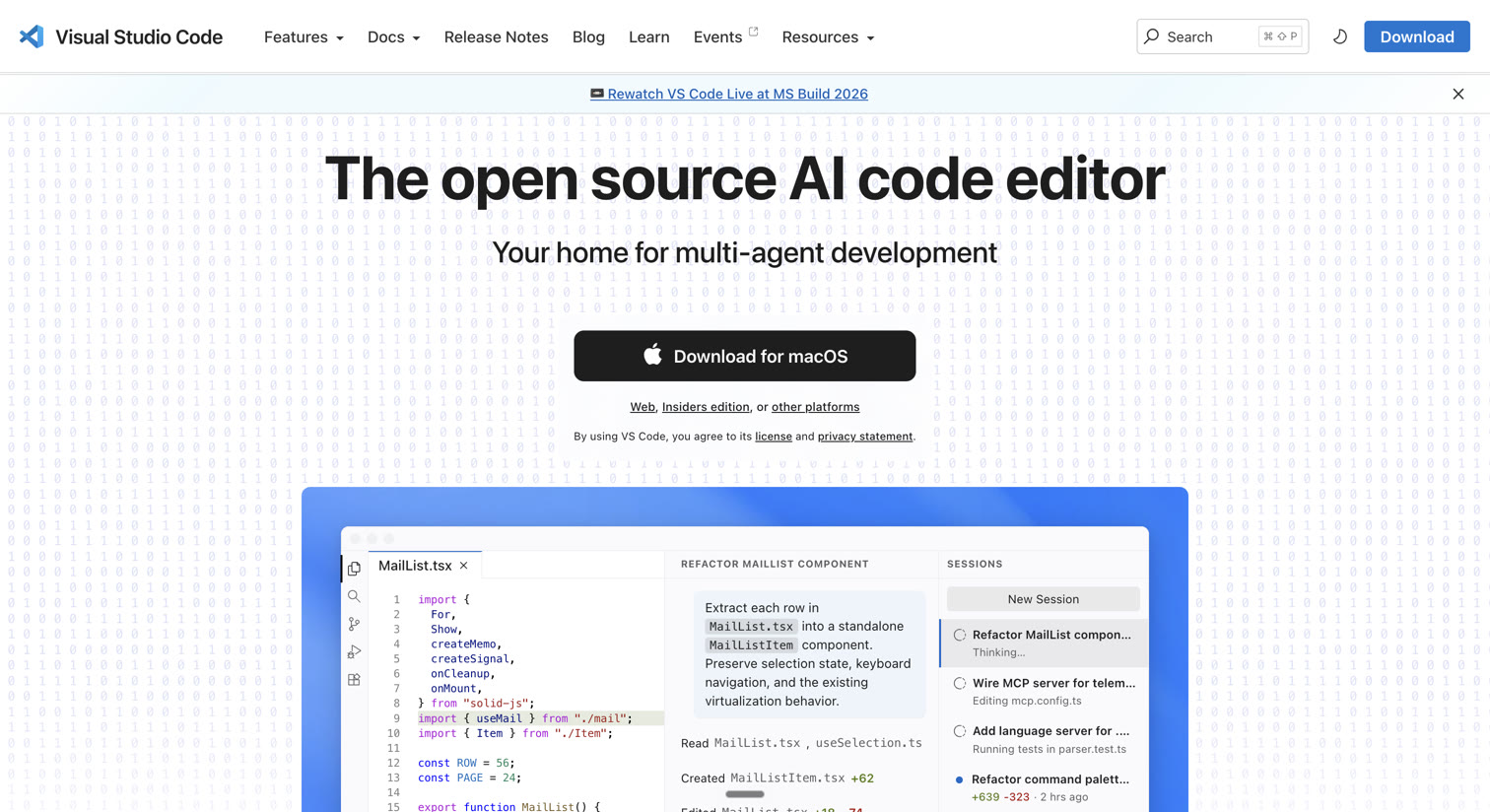
code.visualstudio.com → Download → install like any app. It's the free window your OS lives in.
Add the Claude Code extension
Click the Extensions icon (four squares) → search Claude Code → Install the one by Anthropic.
Silent screen recording · loops
Open your AI-OS and run /onboard
File → Open Folder → open your AI-OS folder and pick the AI-OS folder inside it (trust the authors if asked). Then type /onboard and press Enter — your OS introduces itself and sets you up live.
In VS Code, don't stop at the first AI-OS folder — open it and pick the AI-OS folder inside it. That inner one is your OS.
The very first thing you type in your first session is /onboard. It runs once and sets your OS up around you.
Silent screen recording · loops
Open more chats in parallel
Click + for a new chat — run several at once, each its own conversation working in parallel.
Silent screen recording · loops
Ask it anything
Any question you have — just ask it directly to your AI-OS. It can help you with anything.
If something doesn't work
- No Claude icon after install
- Quit VS Code fully and reopen the folder.
- Sign-in won't return to VS Code
- Sign in at claude.ai first, then retry.
/onboarddoes nothing- Open the inner AI-OS folder (Step 3) — the sidebar should show
CLAUDE.mdat the top. - Anything else
- Ask Claude in the chat, or email support@myaioperatingsystem.com.
That's it — your AI-OS is running. Everything else lives in docs/, and your OS can explain any of it. Just ask.